Review Workflow
Detection proposes; this screen is where you decide. Open it from the main navigation under Data Management → Duplicate Detection, which has one entry per element type.
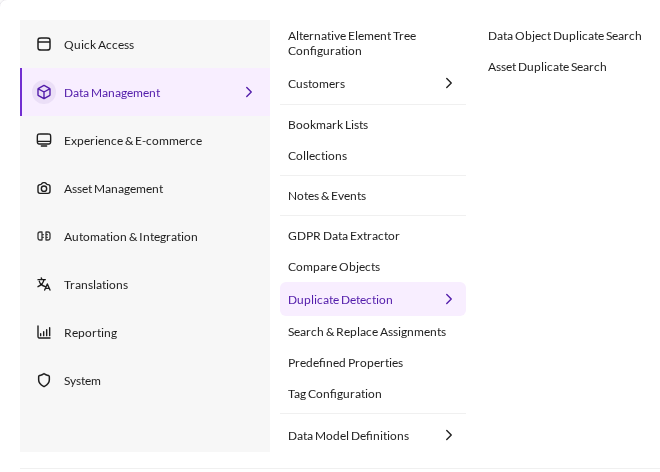

Both screens need the bptb_duplicates_permission user permission, and they additionally respect
element workspaces: a group is only listed when you may view its reference, and members you may not
view are withheld.
The review screen
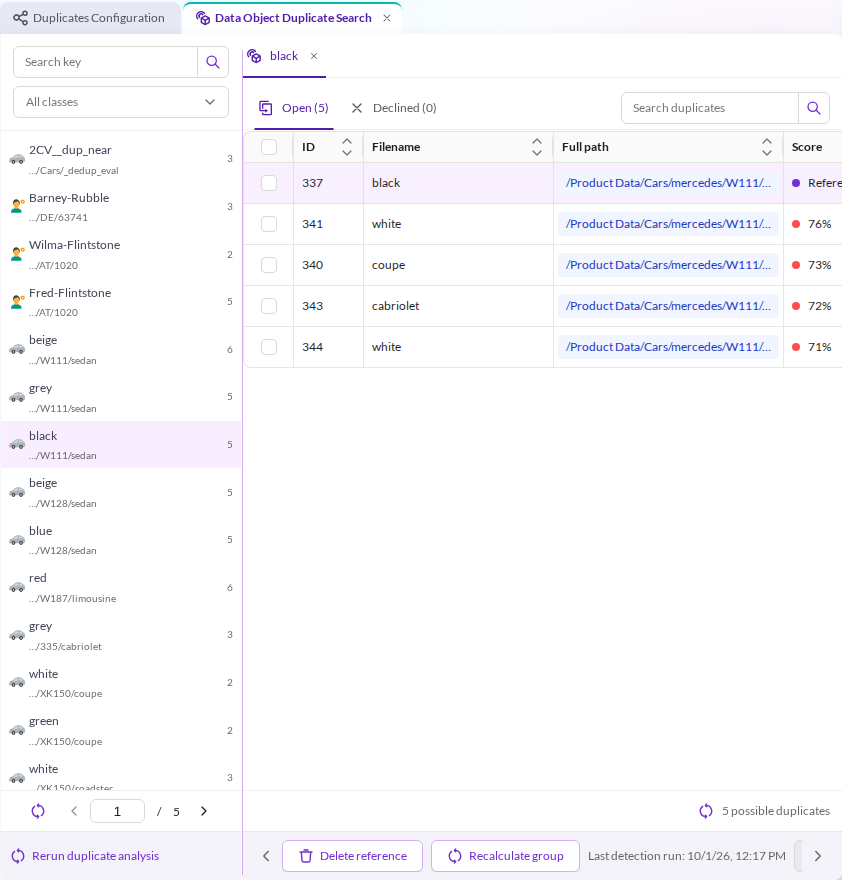

On the left, the groups. Each row shows the reference element's key over its shortened path, and how many candidates it collected. Narrow the list with Search key or the class filter, and page through it at the bottom. Rerun duplicate analysis starts a new detection run from here.
On the right, the selected group. The members are listed with their score, highest first. The reference itself carries a Reference badge instead of a score — it is the element everything else in the group is being compared against, not a candidate.
The group is split into two tabs:
| Tab | Contents |
|---|---|
| Open | Candidates still awaiting a decision. |
| Declined | Candidates you rejected. They stay listed here, and detection will not re-propose them. |
The actions along the bottom:
| Action | Effect |
|---|---|
| Decline suggestions | Marks the selected members as "not a duplicate". They move to the Declined tab. |
| Restore | On the Declined tab: puts a member back into Open. |
| Recalculate group | Re-runs detection for this one reference, instead of the whole scope. |
| Delete reference | Deletes the reference element itself. The group ceases to exist with it; detection has to run again before the change is reflected elsewhere. |
A group whose elements changed since the last run — a merge, or any ordinary save of a member — is flagged as outdated, with a banner and a shortcut to re-run detection for that one group. Until then its scores describe the data as it was before the change.

If an element in the group was saved so recently that its embedding is still being generated, Recalculate group says so and asks you to try again in a moment rather than computing from a missing vector.
Images
Asset Duplicate Search is the same screen for images, with previews instead of field values.
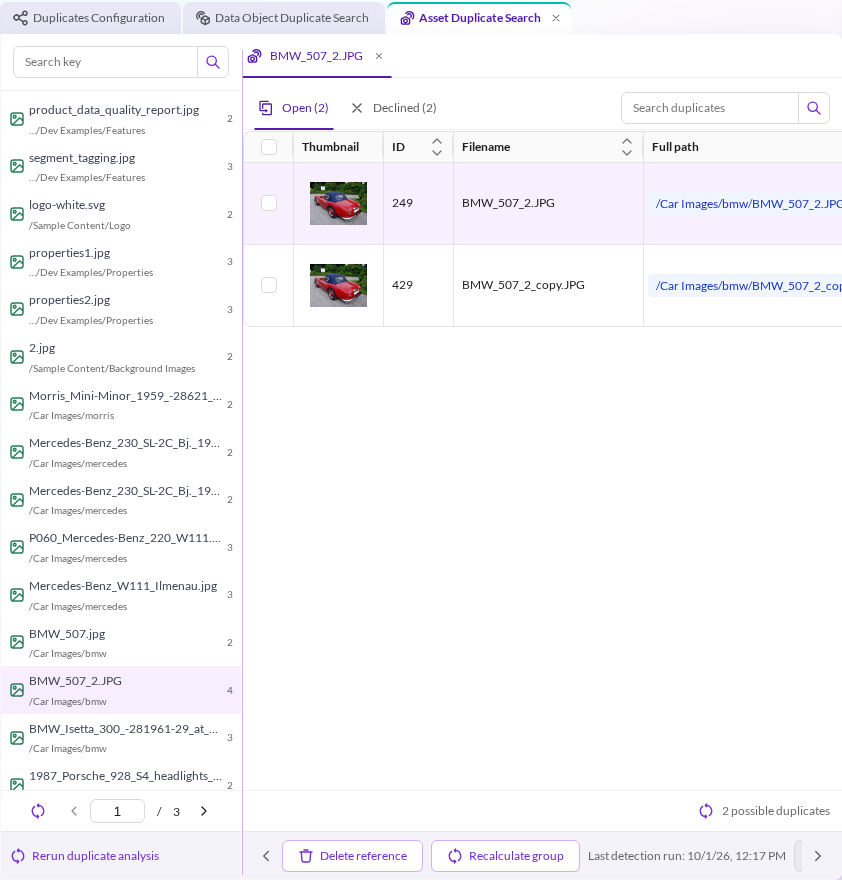

Only images are deduplicated. Documents and text assets can be embedded and searched, but they never enter duplicate detection.
From an object's editor
An object's editor also has a Duplicates tab listing the groups that object belongs to, so you can notice a duplicate while working on the record rather than only in the review screen. When it belongs to more groups than the tab shows, it says so and points to the full review screen.
Declining
Declining is the answer to "the detector is wrong, these are different records". It is per member, not per group: you can decline two of five candidates and merge a third.
Declined members stay visible on the Declined tab and can be restored at any time. The decision survives later detection runs — that is the point of it. It does not survive the group being withdrawn and rebuilt, which is what happens when a class leaves the embedding scope or after certain full runs, see Coupling to the embeddings configuration.
Merging
Select exactly two elements and choose Compare & merge. One of the two becomes the merge target — the record that survives — and the other the merge source, the one being folded into it.
Merging data objects requires the Object Merger bundle. Without it the button reports Requires the Object Merger bundle. Image merging is built into this bundle and needs nothing extra.
The wizard adapts to the pair. The first and last steps always apply; the two middle steps appear only when they have something to do:
| Step | Shown when | Purpose |
|---|---|---|
| 1 Merge | always | Carry field values from the source into the target. |
| Assignments | the source has incoming references | Re-point those references at the target. |
| Child assignments | the source has children | Move the children under the target. |
| Finish | always | Decide what happens to the leftover source. |
The step chips at the top show which of them apply before you start, so you can see the shape of the job up front. Earlier steps stay revisitable; later ones unlock as you reach them.

Step 1 — Merge
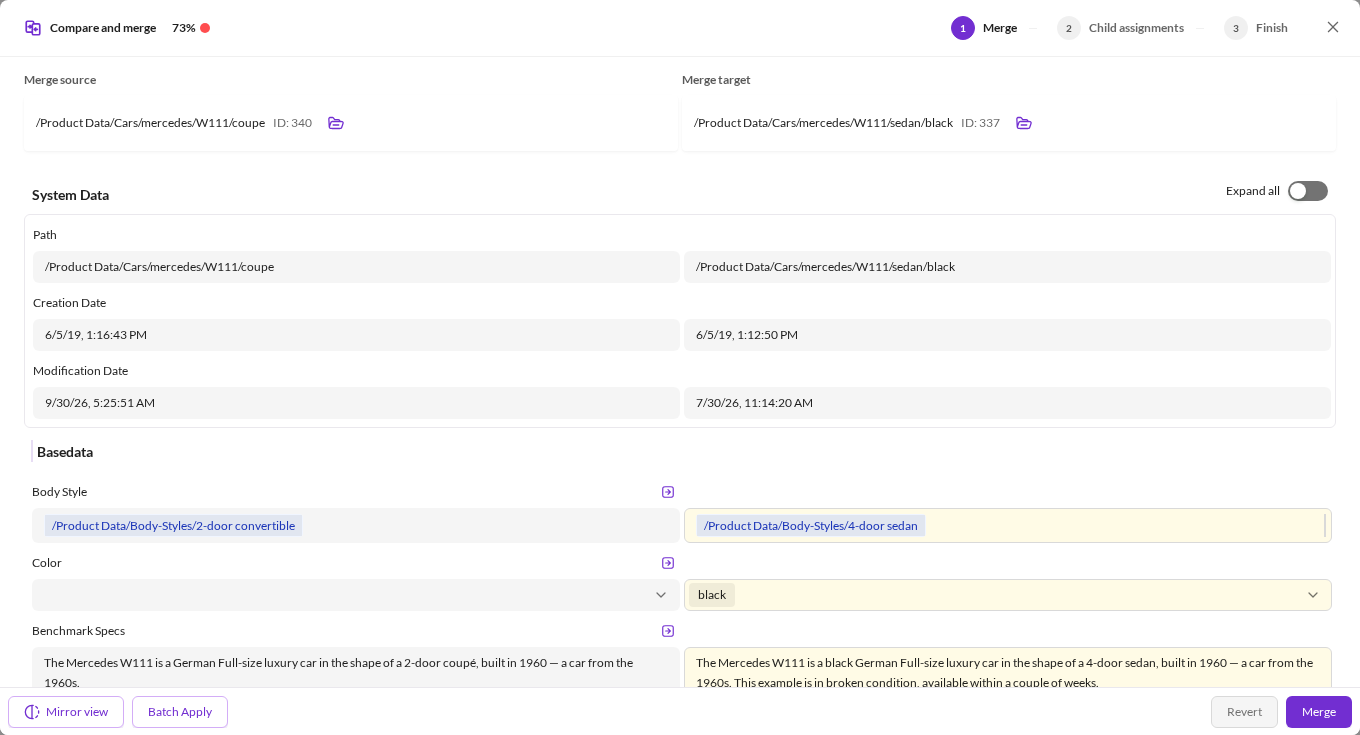

Source on the left, target on the right, field by field, with the similarity score in the header. Differing values are highlighted; the arrow beside a field copies the source value into the target.
- Mirror view swaps the two roles. Use it when you picked the wrong survivor — and note that it changes which element the later steps are about, so the step chips can change with it.
- Batch Apply copies several fields at once instead of one arrow at a time.
- Revert undoes the pending changes and restores the target's original values.
- Merge writes them to the target and moves to the next step.
Nothing is written until Merge is pressed. Without save permission on the target, the step warns and merging is not offered.
For images the equivalent step compares system data (path, filename, resolution, dates) and metadata rather than class fields, hides identical fields behind Expand unmodified fields, and marks values it cannot merge — calculated values, unsupported metadata types, and localized fields, which hold one value per language and cannot be merged as a whole.
Step 2 — Assignments
Appears when something still points at the merge source. Deleting it now would leave those references dangling, so this step lists them and offers to re-point them at the merge target: Select assignments of the merge source to be replaced by the merge target, then Apply replacement to selected & Continue.
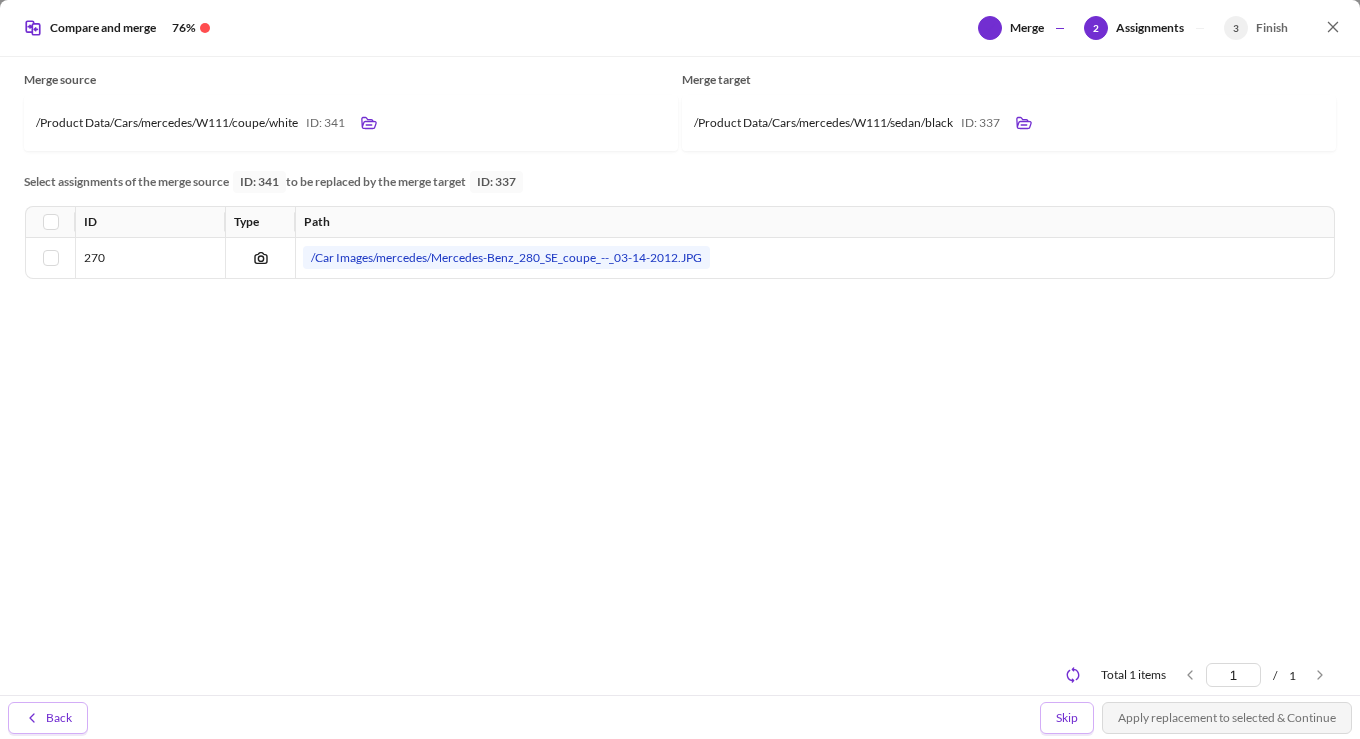

Each row is one thing pointing at the source, with its ID, type and path — in the screenshot a car image assigned to the object being merged away. Tick the ones to re-point.
You may Skip it and handle the references yourself. Note that skipping does not hold the wizard back: the guard on the Finish step only trips when a re-assignment that was started did not complete, so nothing stops you reaching the delete option with references still pointing at the source. Check the list before you skip it.
Step 3 — Child assignments
Appears when the merge source has children — which is the case whenever the source is a parent record rather than a leaf. Deleting it would otherwise orphan them, so this step moves them under the merge target instead.
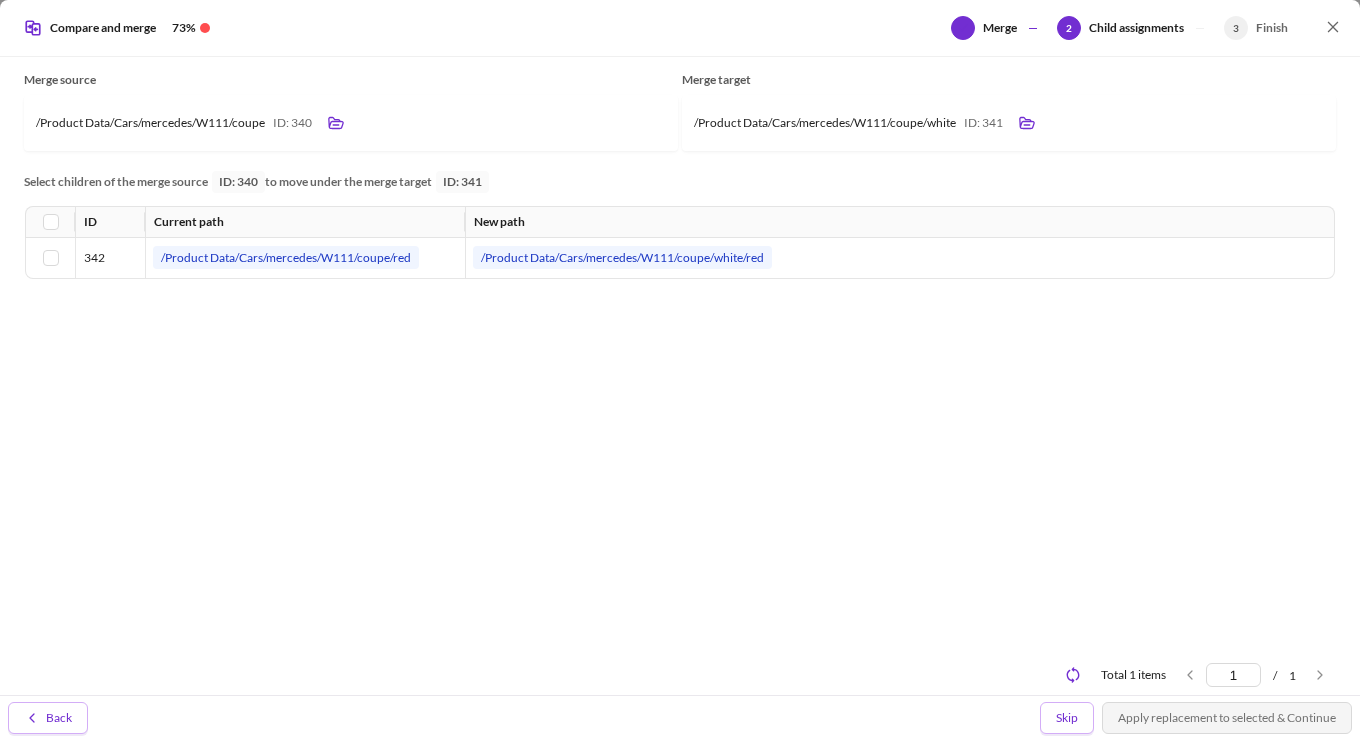

The children are listed with their ID, current path and new path, and you select which to move. Because the new parent may already contain a child of the same name, the step handles naming up front:
- A clash is flagged Rename suggested to avoid a duplicate path, and you edit the key inline.
- A key is rejected when it is empty, contains
/, already exists under the target, or collides with another row you are moving in the same batch.
Permissions are checked per child, and a child you may not move is listed with the reason rather than silently dropped: missing settings permission, missing publish permission, or a clash you would have to rename without the rename permission. Lacking create permission on the merge target blocks the whole step.
Long child lists are moved in batches — only the first page is listed, with a note that the remaining ones follow once these have moved. The move runs as a background job; if some children fail, the step says so and asks you to adjust their keys and try again.
Step 4 — Finish
The merge target now has the values, the references and the children. This step decides what happens to the merge source, and it is the only step that can delete anything.
| Choice | Effect |
|---|---|
| Unpublish it | The object stays in the tree with its version history but is no longer delivered to any channel. Reversible at any time. |
| Delete it | Removes it. Choose it only once everything pointing at the source has been re-assigned — the wizard does not re-count the remaining references for you. |
| Do nothing for now | Leaves it in place and in the group, and decides later. |
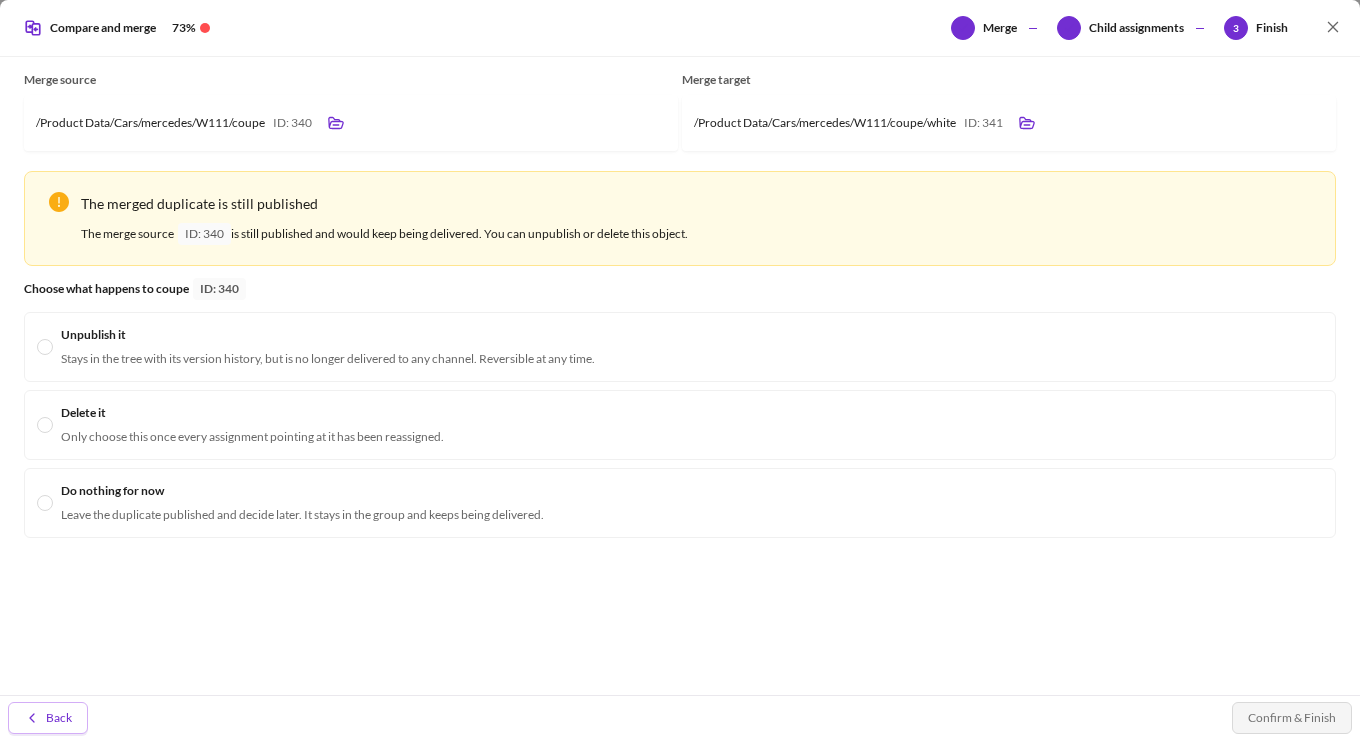

What is offered depends on the situation. A source that is still published is called out as such — it would keep being delivered. One that is already unpublished gets a gentler note. A source that is the group's reference cannot be deleted here, because the group is built around it; delete it from the review screen instead. Options you lack permission for are not offered, and the step says which.
Assets have no unpublish. For an image, deleting the file is the only way to take it out of circulation, so that is the only action offered besides doing nothing.
The step guards against a half-finished job: if a re-assignment or child move was started and did not complete, it blocks the deletion and sends you back to that step. That guard tracks the jobs this wizard ran — it does not verify that no references or children are left over, so a step you skipped, or rows you left unticked, pass it unnoticed. Confirm & Finish closes the wizard.