Collections in Portal Frontends
Portal frontends fully integrate collections and thus they are an essential part of every portal.
Add Elements to Collection
Elements can be added to collections in multiple contexts like in listings, detail pages, search results, etc.
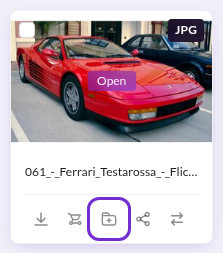

The 'add to collection' dialog allows you to select an existing collection or create a new collection on-the-fly to add the element(s) to. Just start typing collection name in the collection field.

Manage Collections
The portal header contains a link to the collection listing which shows all collections of the current user. That are collections created by the current user, and collections shared with the current user.
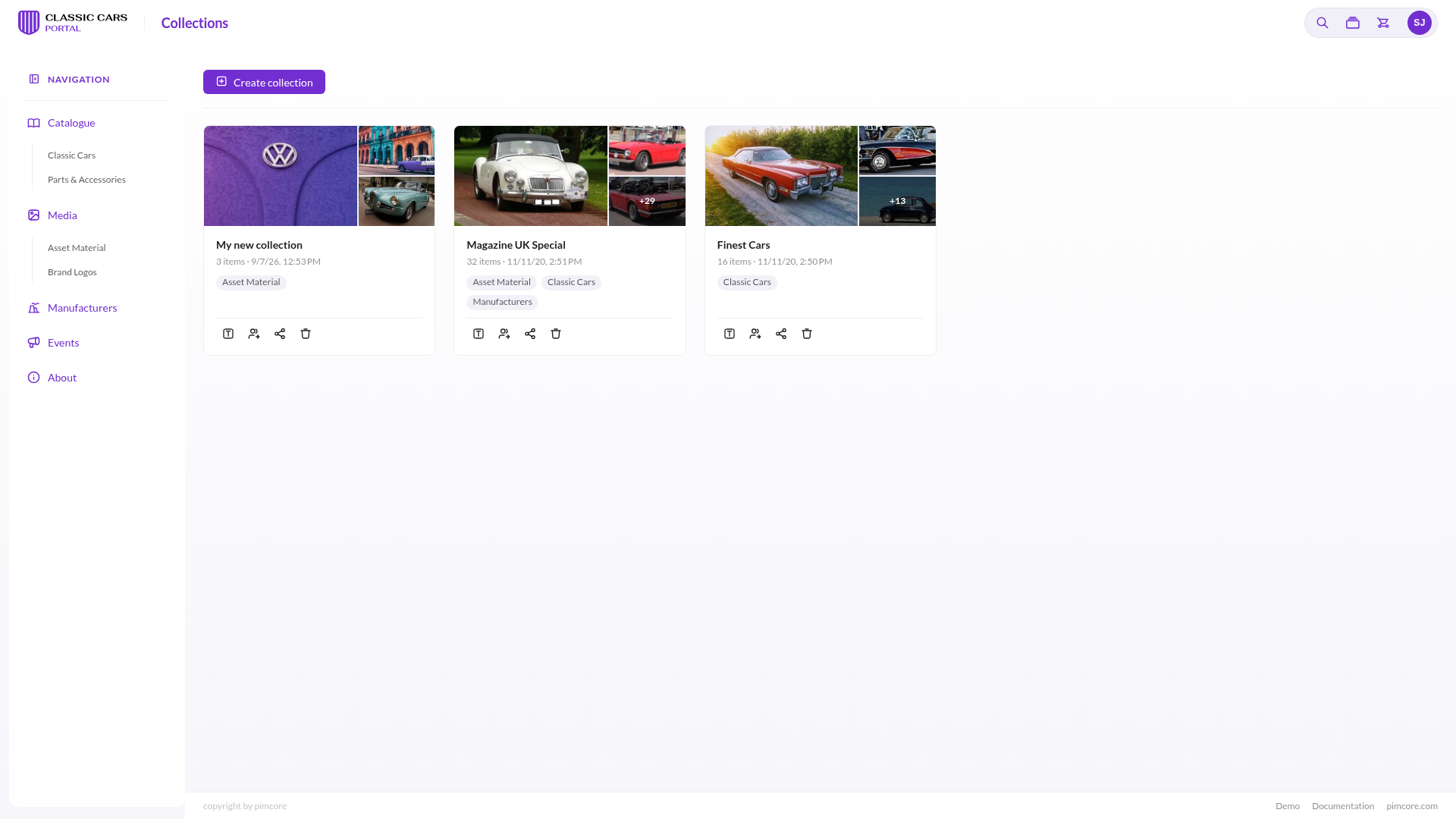

The collection listing offers actions like creating new collections, and editing, opening, sharing and deleting existing collections.
Collection Detail Page
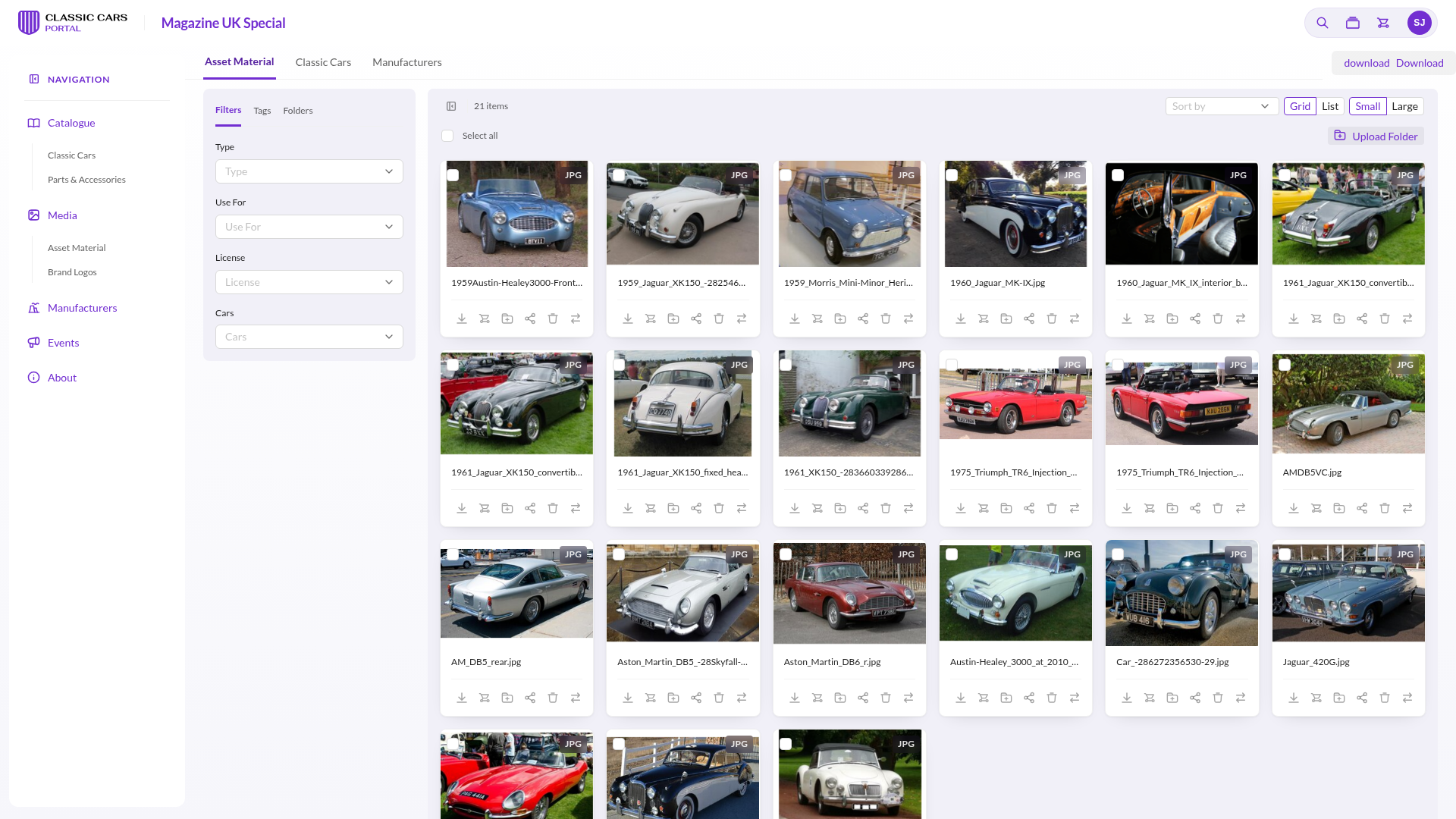

The collection detail page shows all elements assigned to the collection in listings based on their data pools. Thus all listings have all the features available in the data pools to - like filtering, multi selection, adding to cart, adding to another collection, batch editing, etc.
Possible restrictions:
- Elements that are not visible for user due to permissions are not shown in collection detail page.
- Elements that are in collections but not visible in any data pool are not shown in collection detail page.
Collection Download
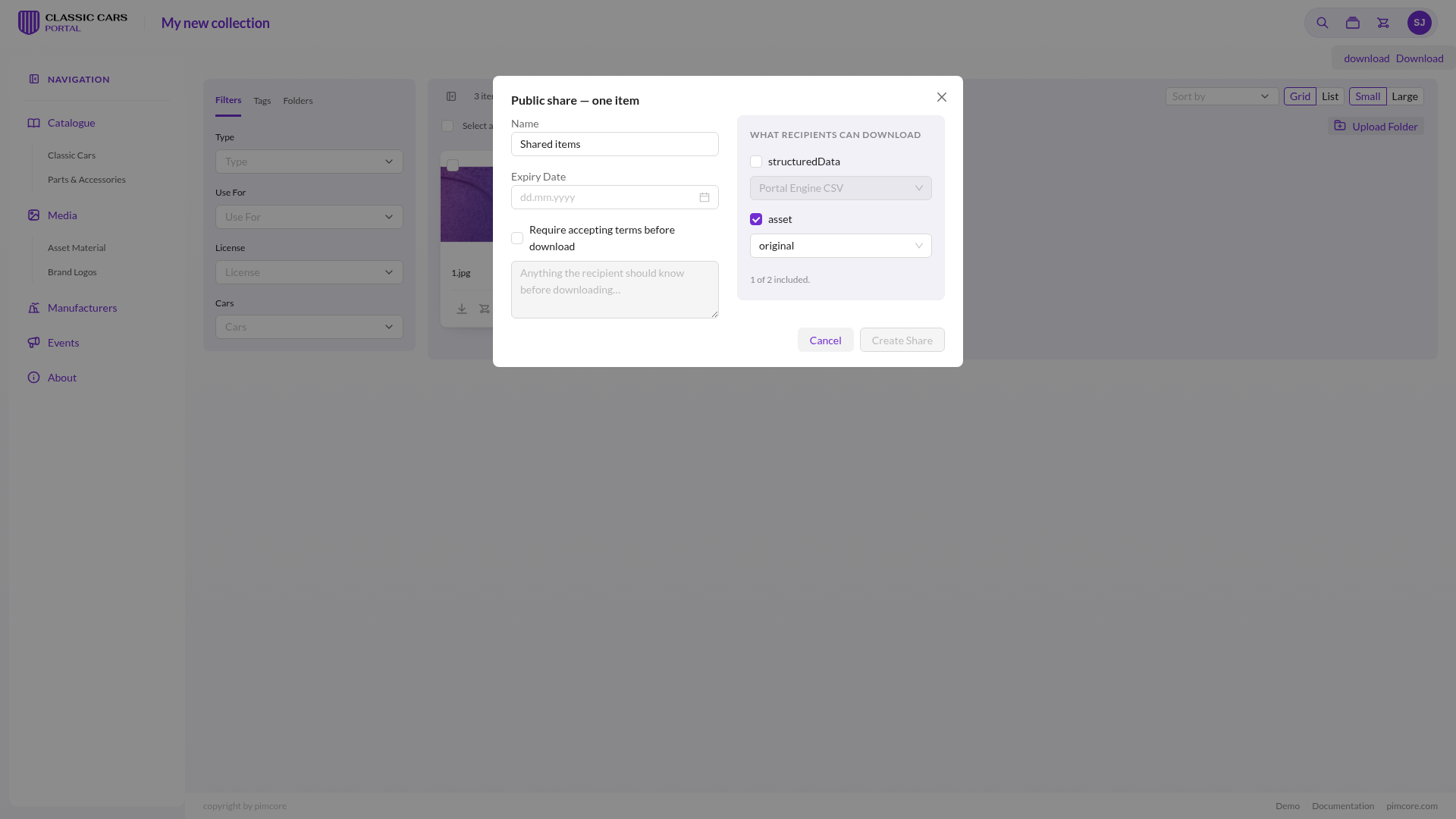
Collections allow to download all assigned elements in one ZIP per data pool. Use Download in
the collection header to take the whole collection, or select individual elements and use
Download in the action toolbar to take only those.
Again, download settings for download formats and included can be specified and the ZIP get packed in a background task.
Sharing
Collections provide two options for sharing.
Sharing with other portal users
Collections can be shared with other portal users two options:
- Read only: Users can open collection, but NOT edit it and add/remove elements.
- Edit: Users can open collection, edit it and add/remove elements.
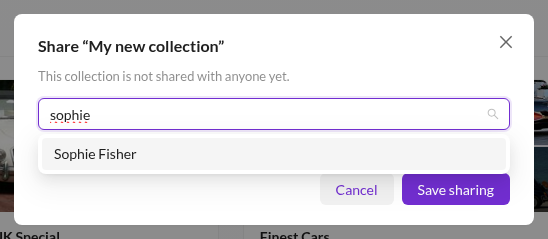

Changes of collection items (newly added, removed) are updated for all users right away. The sharing options can be edited any time.
Depending on the portal configuration, only users and groups that share a group with the current user are offered as recipients (see User Management).
Public sharing
Collection also can be shared via the public sharing feature. If a collection is shared via public share, updates of the collection items (newly added, removed) are also updated to the shares.