Search Modes
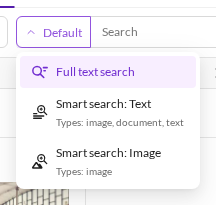
Semantic search is offered as a search mode beside Studio's own full-text search. Pick the mode from the dropdown left of the search field, type a query, and the results are ranked by meaning.
The modes on assets
Assets can be searched three ways.

| Mode | What it matches |
|---|---|
| Full text search | Studio's standard search: the words actually stored on the asset — filename, path, metadata, extracted document text. Finds nothing that does not literally contain the words. |
| Smart search: Text | The text of an asset, by meaning: its filename, path and string metadata, plus the extracted text of documents and text files. Use it to find a PDF about warranty terms that never uses the word "warranty". |
| Smart search: Image | What the picture looks like. The query is embedded into the same space as the image itself, so "red sports car" finds red sports cars with no filename, tag or metadata involvement at all. Images only. |
The dropdown names the asset types each mode covers — in the screenshot, text search covers
image, document, text while image search covers image. Those lists come straight from the embedding
scope, see Configuration.
Text and image search are different questions, not better and worse. A photo named
auto-3237478.jpg carries nothing useful in its text, so only image search will find it. A PDF has no
picture worth embedding, so only text search will. Exactly one of the two is scored per query — the modes
are never blended.
The modes on data objects
Data objects have no picture to embed, so there are two modes.

| Mode | What it matches |
|---|---|
| Full text search | The words stored on the object. |
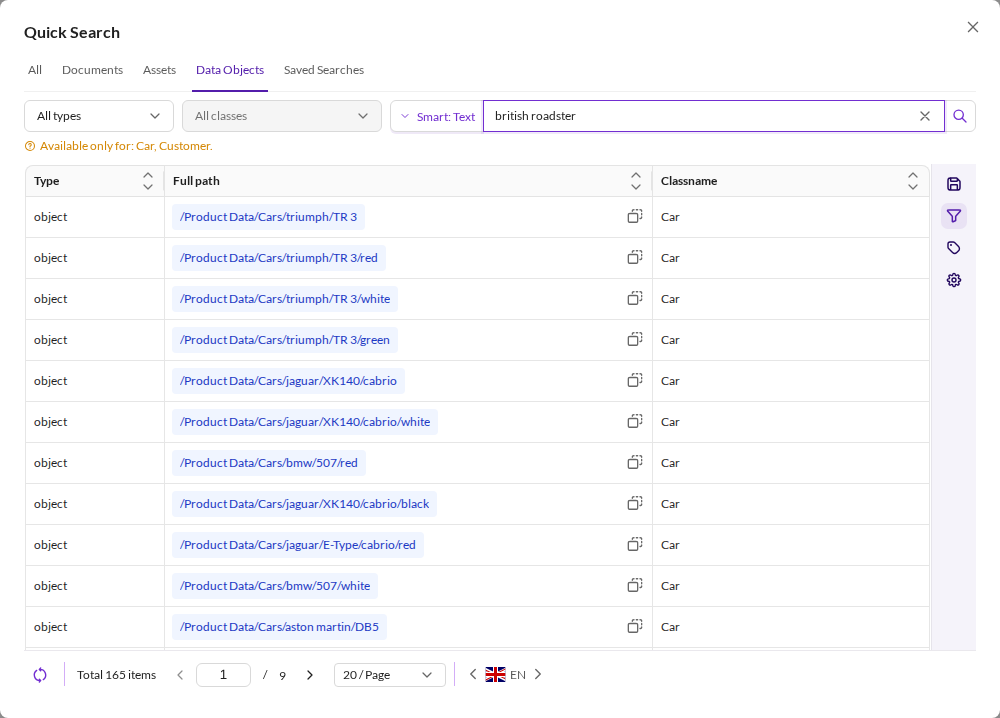
| Smart search: Text | A composed text representation of the object — its field values, chunked — by meaning. |
The dropdown names the classes that are covered; only classes in the embedding scope can answer. Searching "british roadster" over them ranks by what the cars are, not by the words in their fields:

Documents are not embedded at all, so the Documents surface offers no mode selector.
Where the modes appear
Quick search
Open quick search from the left sidebar. Each tab carries its own mode selector, offering whatever that element type supports.
The All tab is the exception: it runs one query across assets and data objects together and returns a single merged ranking, rather than searching each type separately and stitching the lists. Both element types embed their text with the same model, so the scores are directly comparable.
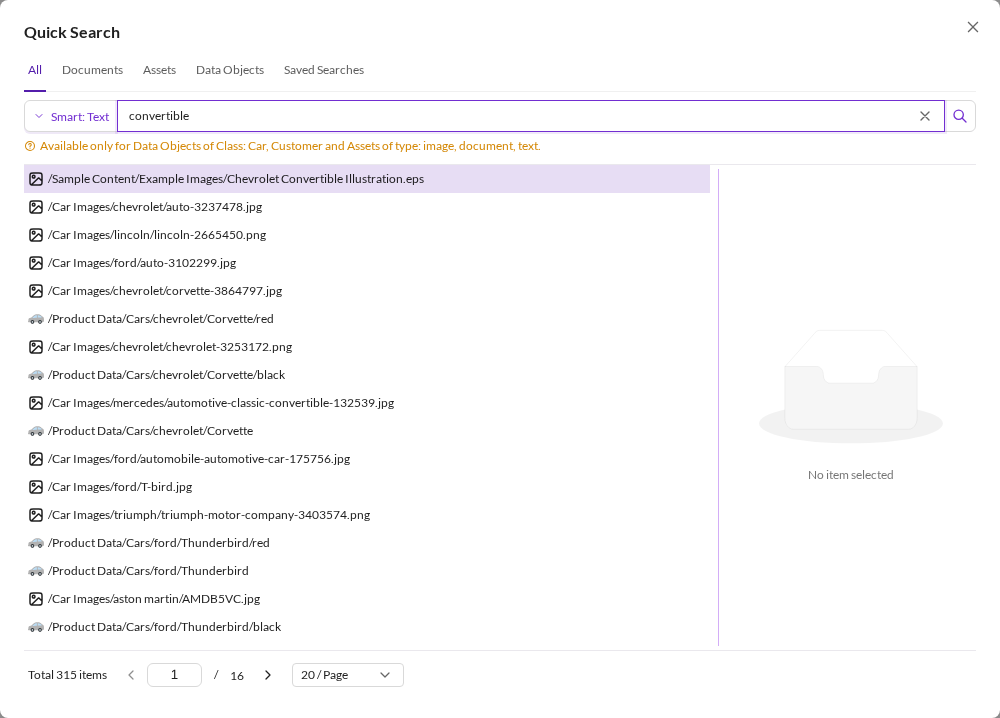

Because the All tab spans both types, its coverage note names both, for example Available only for Data Objects of Class: Car, Customer and Assets of type: image, document, text.
Grids
The same modes sit in the Search & Filter panel of any asset or data object grid, under their short labels Smart: Text and Smart: Image.

Here the semantic query is one filter among the rest: field filters, the folder scope and Only direct children all still apply, and the result is their intersection, ranked by relevance. A warning names the classes or asset types that can answer, because a grid may well be showing elements outside the embedding scope.
Score column and threshold
While a smart mode is applied, the grid shows a Score column: the relevance of each row as cosine similarity × 100. It is added by the mode itself, cannot be added through the column configuration, and is dropped — with any sort or filter on it — when the mode is switched off. A score filter on the column sets the minimum score; left untouched, the target's default minimum score applies, which the filter input shows as its placeholder. Scores of image search and text search live in different bands and are not comparable. See Relevance score and score threshold.
Sorting
While a smart search is active the results are ordered by relevance. Clicking a column header to sort takes precedence: the result set stays the same, but it is ordered by that column instead. See result ordering.
How many results come back
A semantic query asks the engine for the nearest neighbours, then drops every candidate below the score threshold. How many neighbours are asked for is a configured cap:
- In grids and on quick search's Assets and Data Objects tabs, the listing candidate cap (default 10,000, the engine maximum), see Candidate cap.
- On the All tab, the global search candidate cap (default 150) per index, see Global Endpoint.
So the count is bounded by the cap and by the threshold, not by the size of the catalogue. Semantic search answers "what are the best matches for this" — raise the threshold or narrow the query rather than paging deep into the list. Both caps and the default thresholds are set under System > Semantic Search Configuration, see Configuration.
When the inference service is down
The search fails with a message — Smart search is currently unavailable: the AI inference service could not be reached. Please try again later or use the normal search. — and returns no results. This applies in grids, on every quick search tab including All, and to exports and batch actions of a grid with a smart search filter. There is no silent fallback to non-semantic results. See When the inference service is down.
Query embeddings are cached for 24 hours, so a repeated query may keep working straight through a short outage.