Basics
Create a Productsup configuration in Pimcore Studio under Automation & Integration > Data Hub Configuration, then select the Productsup adapter type. The configuration is split into these tabs: General, Schema, Workspaces, Trigger & Execution, Delivery Endpoint, Order Endpoint, and Permissions.
General
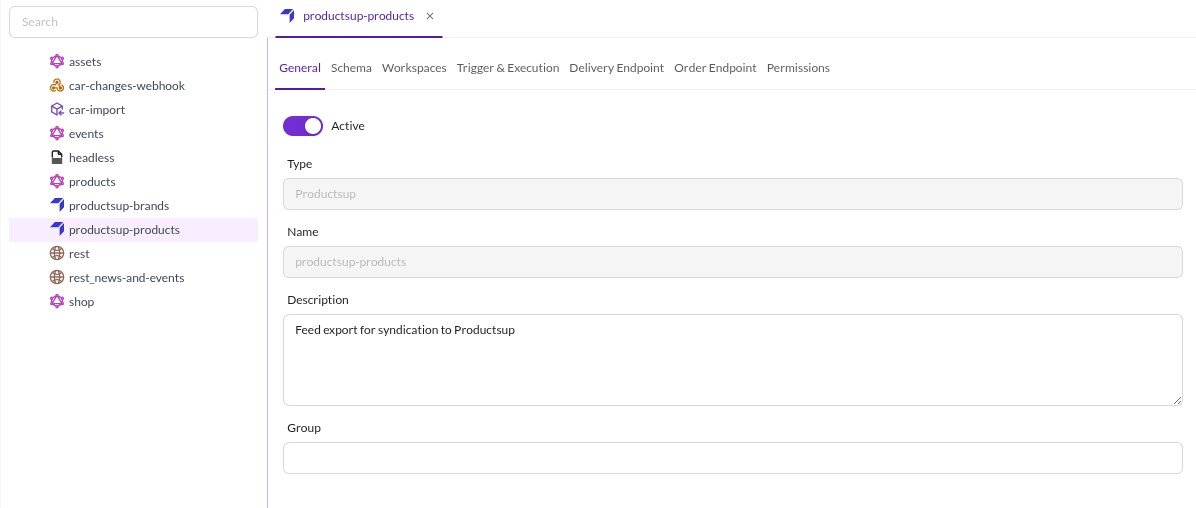

Active: enable or disable the configuration.TypeandName: set when the configuration is created and shown read-only here.Description: free text describing the configuration.Group: groups configurations in the Datahub tree on the left.
Schema
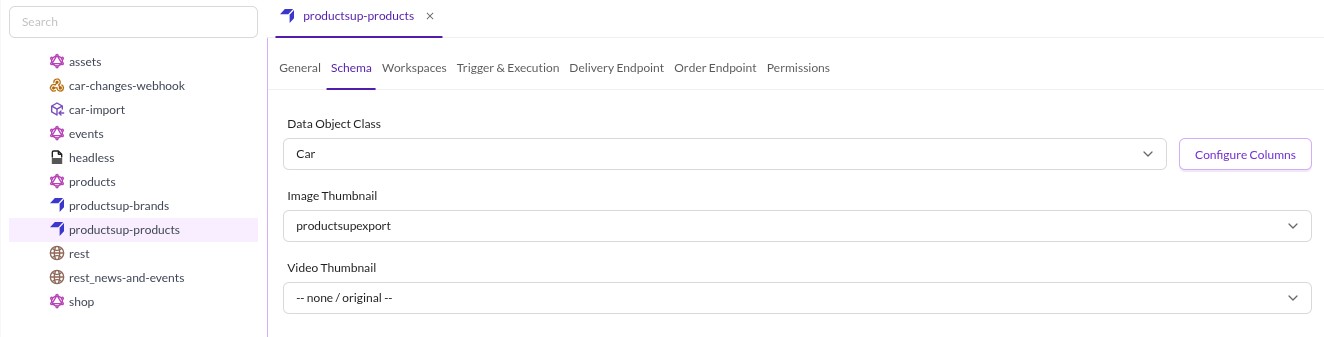
Pick the Data Object Class to export, then open Configure Columns to choose which fields are exported.

- Add fields from the field tree, the same field selection used by the Pimcore Studio data object grid.
- Optionally define an Image Thumbnail or Video Thumbnail when exporting assets. Leave them unset to export the original asset path.
- Select a column named
id. Productsup identifies items by that key, and an explicitly selected column is the only way it reaches the delivered payload.
Both exporters record the item's field list before they add a fallback id, and execute() stores only the
recorded fields. The fallback ID therefore identifies the cache row (and answers the item_id request parameter),
but it is not part of the data the Delivery Endpoint returns. Select an id column explicitly.
Configurations created before the Pimcore Studio integration use a tree-based schema format. They keep working unchanged, but must be migrated to the column-based format shown above before they can be edited in Pimcore Studio. To migrate, open Configure Columns on such a configuration, select the columns and apply them, then save the configuration. Applying the columns is what converts the schema, and saving is what persists it. Closing the modal without applying leaves the legacy schema in place.
Workspaces
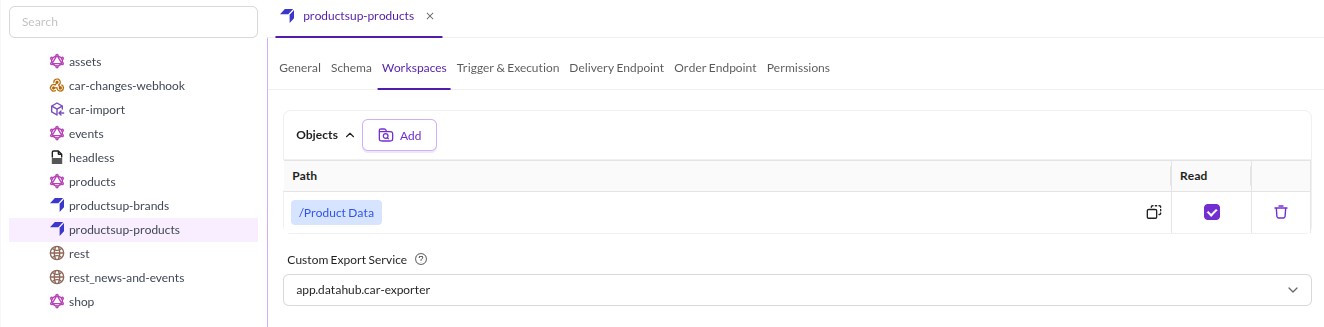

Objects: restrict the export to specific data object folders. Click Add to append a row, then drag a folder from the object tree onto its Path cell. Keep the row's Read checkbox ticked; an unticked row grants no access.Custom Export Service: override the default export service with a custom implementation. The dropdown lists every service taggedpimcore.datahub.fileExport.exporter. Leave it unset to use the default service. Which service that is depends on the schema format: a Studio (column-based) schema uses thepimcore.datahub.productsup.exporter.studioProductsupservice, a legacy (tree-based) schema uses thedefaultExporterconfigured for the bundle,pimcore.datahub.fileExport.exporter.productsupby default. See Customize and Extend to register your own service.- To filter out individual items, listen for the
IsValidExportItemEvent(see Events) or overridegetQueryCondition()in a custom exporter.
Workspace paths are matched with a SQL LIKE '<path>%' and no folder-boundary check, so an entry for
/Product Data also matches /Product Data Archive. Pick paths that are not prefixes of unrelated sibling folders,
or narrow the listing in a custom exporter.
Trigger & Execution
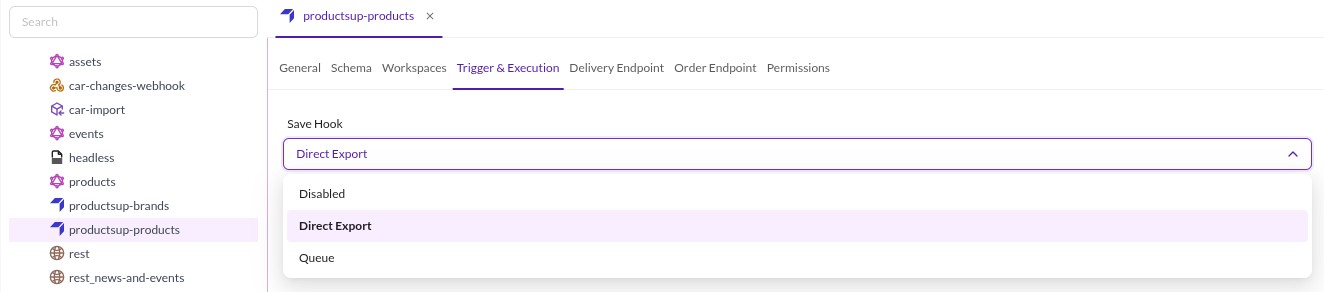

The Save Hook defines what happens when a data object is saved:
Disabled: saving does nothing. Data is only refreshed by running the export command, see Export Setup. Every run is a full export.Direct Export: when the object is saved, its data is written directly to the cache table. Use this only for simple objects without inheritance, because of the save performance impact.Queue: when the object is saved, a queue item is written to theplugin_datahub_queue_itemtable. The save itself stays fast, but nothing is exported until the nextdatahub:export:productsup --only-queue-itemsrun processes the queue. There is no worker that picks queue items up on its own, so this mode requires the command scheduled as a cron job, see Export Setup.
The save hook only reacts to real saves of objects of the configured class. Auto-saves and version-only saves are
skipped. When the class has inheritance enabled, saving one object re-exports (Direct Export) or queues (Queue)
every object of that class below the saved object's path, not just the saved object itself.
The toolbar button Save, reset and clear queue saves the configuration, clears its queue and its cache table, then refills the queue with every item the configuration currently matches. Use it after changes that invalidate cached items, for example a new schema or a changed workspace. The button becomes available once the configuration has unsaved changes, asks for confirmation, and cannot be undone. For how this differs from a full run of the export command, see Export Setup.
Delivery Endpoint
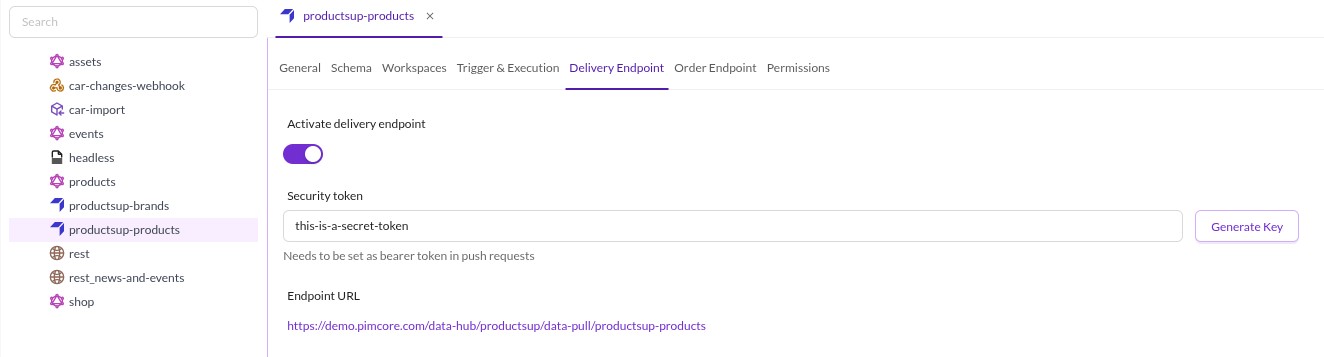

Activate delivery endpoint: enables the endpoint that Productsup calls to fetch product data. The endpoint URL is shown at the bottom of the tab.Security token: sent by Productsup as a bearer token (HTTP headerAuthorization: Bearer <token>). The check is skipped for a request from a user who is logged in to Pimcore and holds theplugin_datahub_configpermission. Click Generate Key to create a random token.- Supported GET parameters on the endpoint:
page,per_page,since_modification_date,item_id.
Order Endpoint
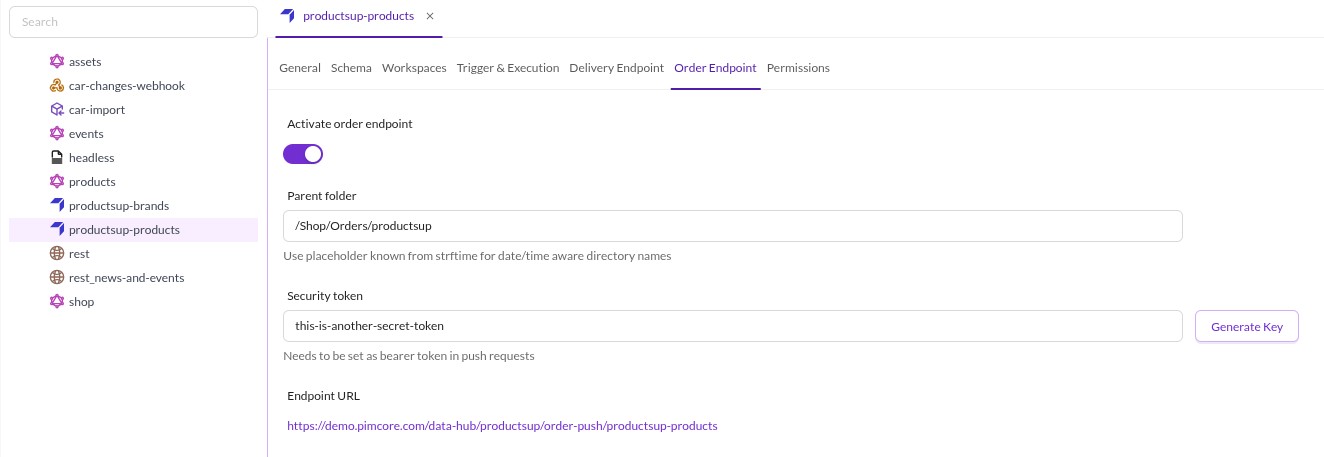

Activate order endpoint: enables the endpoint that Productsup pushes orders to. The endpoint URL is shown at the bottom of the tab.Parent folder: the folder new order objects are saved to. Acceptsstrftimeplaceholders for date/time-aware directory names.Security token: sent by Productsup as a bearer token, with the same session bypass as the delivery endpoint. Click Generate Key to create a random token.- A sample request payload is available in
doc/examples/order.json. - When Pimcore runs in debug mode (
kernel.debug), post afileform field instead of a JSON body to load the payload from a file on disk, for examplefile=/vendor/pimcore/data-hub-productsup/doc/examples/order.json. Thefilevalue must be sent as a POST field, not as a query parameter. - Incoming payloads are logged through the
ApplicationLogger. Check the log entries with componentdata-hub-productsupif an order import fails.
Permissions
Grant read, update and delete access per user or role in the Permissions tab. See User Permissions for how this relates to the permission that controls access to the Productsup adapter as a whole.