Configuration
Configure OpenID Connect providers in System > User & Roles > OpenId Connect > OpenId Connect Configuration in Pimcore Studio, or directly in a Symfony configuration file (see Configuration Storage). Opening this screen requires the OpenID Connect Configuration permission, see Installation.
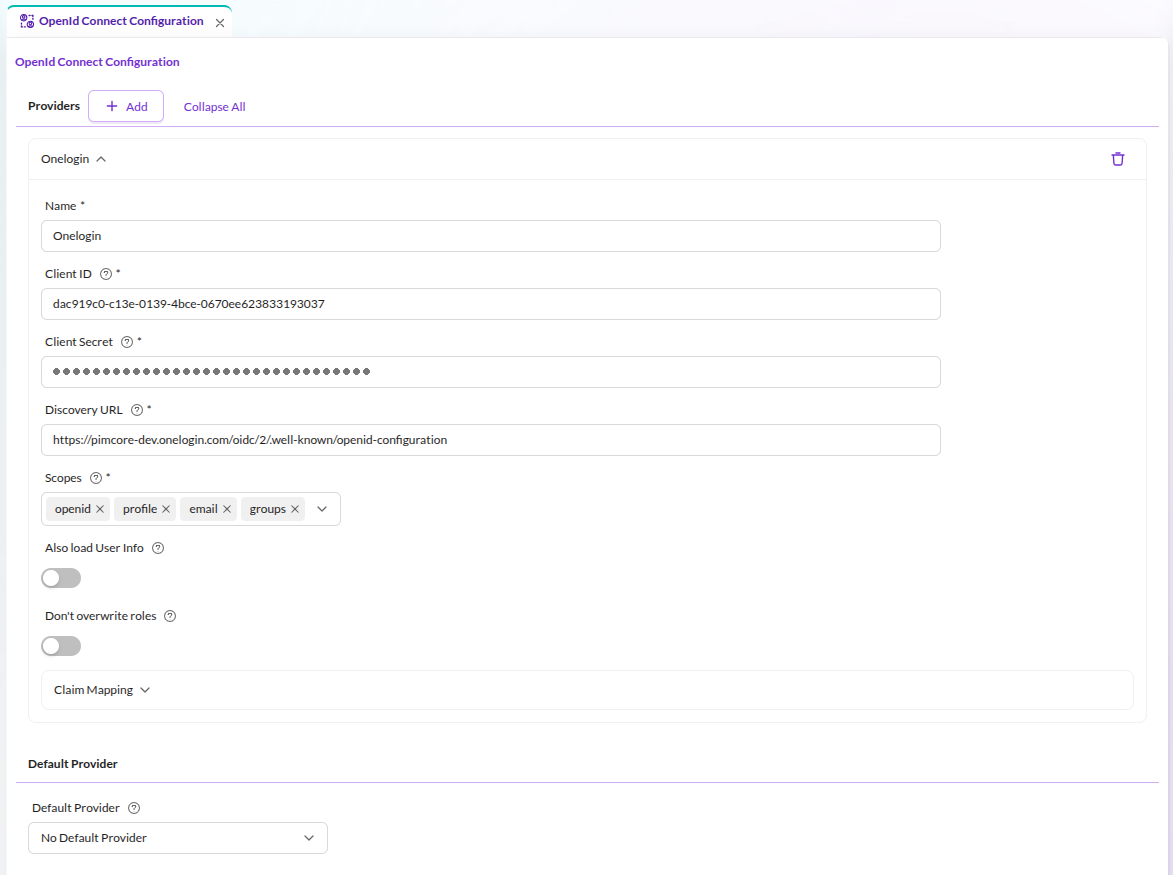

Provider Configuration
Configure one or more OpenID Connect providers in parallel. Pimcore Studio shows a "Login with <Provider>" button
per configured provider on its login page; clicking one starts that provider's OpenID Connect flow. Each provider
needs a unique name.
On the provider side, register an application for Pimcore with:
- Redirect URL:
https://<YOUR_PIMCORE_DOMAIN>/pimcore-studio/api/bundle/openid-connect/auth/endpoint - Allowed scopes:
openid profile email groups(seescopesbelow). Providers that reject unknown scopes, such as Microsoft Entra ID, needgroupsremoved from Pimcore'sscopesoption; see the note there.
Once the application is set up, configure these required values per provider in Pimcore:
client_id: Client ID provided by the provider.client_secret: Client secret provided by the provider. The configuration screen treats it as write-only: once saved, the value is never sent back to the browser and the field shows a placeholder instead. Leave the field empty to keep the stored secret, or enter a new value to replace it. Renaming a provider requires entering its secret again, because the stored secret is looked up by provider name.url_discovery: Endpoint for OpenID configuration discovery, based on the OpenID Connect Discovery spec. Typically something like<PROVIDER_DOMAIN>/.well-known/openid-configuration. Some providers publish different signing keys depending on the application, for example Microsoft Entra ID with a custom signing key, where the key is only listed in the application-scoped discovery document (.../.well-known/openid-configuration?appid=<CLIENT_ID>). Use that URL here if login fails withidToken could not be verifiedand the kid of the token is missing from the listed kids. The error message names the kid and alg of the token, the kids of the key set and thejwks_urithat was used (the key must be in the key set the discovery document points to). The key set is cached for one day: after a key rotation, clear the cache tagoidcto see the current keys.
Optional values per provider:
-
scopes: Scopes sent with the authorization request. Defaults toopenid,profile,emailandgroups. Pimcore always addsopenid, even if you remove it, because the OpenID Connect flow requires it.notegroupsis not a standard OpenID Connect scope. Providers that reject unknown scopes, such as Microsoft Entra ID (errorAADSTS70011), fail the login with the default list. For those providers, setscopesexplicitly withoutgroups, for exampleopenid,profileandemail. In the Studio provider form, remove thegroupstag from the Scopes field. Entra ID delivers group claims through the group claims setting of the app registration instead of a scope.Pimcore matches roles by group name, but Entra ID emits group IDs (GUIDs) by default. Configure the app registration to emit group names, or use app roles and set
claim_mappinggroupstoroles. Otherwise no role matches, and unlessdont_overwrite_rolesis enabled the user's Pimcore roles are removed on each login. Entra ID also omits the groups claim for users in more than about 200 groups (overage). -
load_user_info: Merge the provider's userinfo response into the claims taken from the ID token, with the userinfo values winning. Enable this if the ID token alone does not carry all the claims Pimcore needs. -
dont_overwrite_roles: Skip role re-assignment after login, so you can manage roles in Pimcore instead of the provider. See Role Mapping. -
claim_mapping: Custom claim names, for providers that deviate from the OpenID Connect standard names. Maps the supported claimspreferred_username(the username),given_name,family_name,email,groups(an array, or a comma- or semicolon-separated string, of group names),picture(URL of the user's avatar) andsub(the provider's remote user ID).
Default Provider
Optionally set a default provider by name. Pimcore Studio's login page then redirects to that provider's login immediately instead of showing the local credentials form, as long as the browser has no Studio session yet. A user who is already signed in and opens the login page is taken into Studio without another round trip to the provider.
If a sign-in attempt fails, for example because the provider reports an error or Pimcore rejects the user, the browser returns to the login page with an error message, the credentials form and the provider buttons. The redirect does not start again by itself; the user decides whether to try again. Each failed attempt is written to the Pimcore log.
The redirect happens as soon as the login page loads for a visitor without a Studio session. The local credentials
form only appears after a sign-in attempt has failed, so local accounts cannot count on reaching it. If the default
provider becomes unreachable, or fails during the code exchange (for example because the client secret was rotated
at the provider, see Studio Login Flow), and locks out local accounts, remove
PimcoreOpenIdConnectBundle::class from config/bundles.php and clear the cache to restore the plain login form.
This works regardless of where the configuration is stored. If it is stored as symfony-config, removing
default_provider from the configuration file (see Configuration Storage) works too and
does not require disabling the bundle.
Studio Login Flow


Once at least one provider is configured, a user signs in like this:
- Pimcore Studio's login page shows a "Login with
<Provider>" button for each configured provider, next to the local credentials form (or redirects immediately if a default provider is set). - Clicking a button sends the browser to the bundle's public callback route, the same Redirect URL you registered with the provider above, with the provider name attached. The route redirects to that provider's authorization endpoint, starting the OAuth2 authorization code flow.
- The user authenticates with the provider.
- The provider redirects back to the same callback route with an authorization code. The bundle validates the OAuth2 state and redirects the browser to its login route, passing the code along.
- Pimcore's security layer picks up that request with its
OpenIdConnectAuthenticator. It exchanges the code for tokens, validates the ID token's signature and claims, and creates or updates the matching Pimcore user from the token claims (see Technical Details). - The login route redirects the browser into Pimcore Studio, restoring the perspective and page that were active before the login started. A sign-in started on the login page itself lands on Studio's start page.
If the attempt fails before the code exchange (for example the provider reports an error or the OAuth2 state does not match), or Pimcore rejects the user, the browser lands on the Studio login page with an error message instead. An error during the code exchange or the ID token validation in step 5, for example a wrong client secret, ends on an HTTP 500 error page; the Pimcore log has the cause.
The local credentials form keeps working alongside SSO, unless a default provider forces the redirect described above.
Configuration Storage
The configuration screen stores its data through a LocationAwareConfigRepository. Configure the storage location
in the Symfony configuration tree:
symfony-config: write configuration as YAML to/var/config/oidc/pimcore_open_id_connect.yaml.settings-store: write configuration to the Pimcore SettingsStore.disabled: do not allow writes. The configuration screen becomes read-only, and its Save button and input fields are disabled.
See the Pimcore Configuration Storage Locations and Fallbacks documentation for the underlying mechanism.
Example: Custom Storage Directory
pimcore_open_id_connect:
    config_location:
        open_id_connect:
            write_target:
                type: 'symfony-config'
                options:
                    directory: '/var/www/html/var/config/oidc'
Example: Providers Defined in Symfony Configuration
Define providers directly in a Symfony configuration file instead of using the configuration screen. In this case,
the configuration screen becomes read-only, since the values it would edit no longer come from a writable source.
The client secret is shown as stored but never displayed, and it can reference an environment variable through
%env(OIDC_CLIENT_SECRET)%, which keeps it out of the database and the configuration file.
pimcore_open_id_connect:
    default_provider: onelogin

    providers:
        onelogin:
            client_id: <CLIENT_ID>
            client_secret: <CLIENT_SECRET>
            url_discovery: https://<USERNAME>.onelogin.com/oidc/2/.well-known/openid-configuration
        okta:
            client_id: <CLIENT_ID>
            client_secret: <CLIENT_SECRET>
            url_discovery: https://<USERNAME>.okta.com/.well-known/openid-configuration
            load_user_info: true
            dont_overwrite_roles: false
            scopes:
                - openid
                - profile
                - email
                - groups
            claim_mapping:
                preferred_username: preferred_username
                given_name: given_name
                family_name: family_name
                email: email
                groups: groups
                picture: picture
                sub: sub
Debugging
Open System > User & Roles > OpenId Connect > Debugging Tool in Pimcore Studio (same permission as the configuration screen) to troubleshoot a provider setup. It opens in a new browser tab and lists the configured providers.
Picking a provider runs a real sign-in against it, the same OAuth2 flow described above, but instead of logging you
into Pimcore Studio, the tool shows the raw response: the ID token claims, the userinfo response, the configured
claim_mapping, and the resulting merged user information Pimcore would use. Use it to verify a provider sends the
claims your claim_mapping expects. If the flow fails, the tool renders the error message instead.