Workflow List
Open the Workflow Designer in Pimcore Studio under System > Workflow Designer.
The workflow list shows all workflows defined with the workflow designer in a folder based structure. From there it is possible to create new workflows, open the workflow configuration editor for a specific workflow and delete existing workflows.
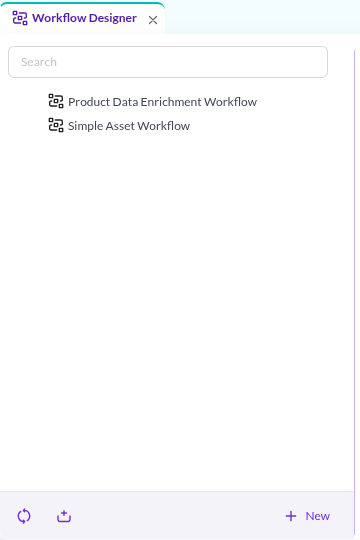

Add new Workflows
When creating a new workflow, the workflow configuration editor is opened for defining the workflow. Based on the given name, an internal workflow ID is generated. The name can be changed later on, the ID is fixed.

Each workflow has a couple of mandatory settings (Subject, Workflow Definition) to be configured before it can be saved. Saving is rejected in three cases:
- The diagram contains no transition at all.
- The
Subjectsettings on the General tab are incomplete (no strategy, or no class selected for the chosen strategy). - The workflow
TypeisState Machineand a transition or global action in the diagram has more than one outbound connection to a place.


Delete Workflows
Existing workflows can be deleted using the context menu.
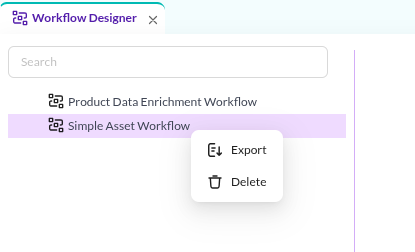

Import and Export Workflows
Export a workflow from its context menu in the list, or with the export button in the toolbar of an opened workflow.
The download is a JSON file named workflowDesigner_<label>_export.json containing the complete workflow configuration.
Import a workflow with the import button at the bottom of the list and select an exported JSON file. The workflow name
is derived from the label in the file, so importing fails with a conflict if a workflow of that name already exists.
Rename the label in the file to import a second copy. After a successful import the workflow opens in the editor.