Basics
Create a File Export configuration in Pimcore Studio under Automation & Integration > Data Hub Configuration, then select the File Export adapter type. The configuration is split into these tabs: General, Schema, Workspaces, Delivery Destination, Trigger & Execution, Logs, and Permissions.
General
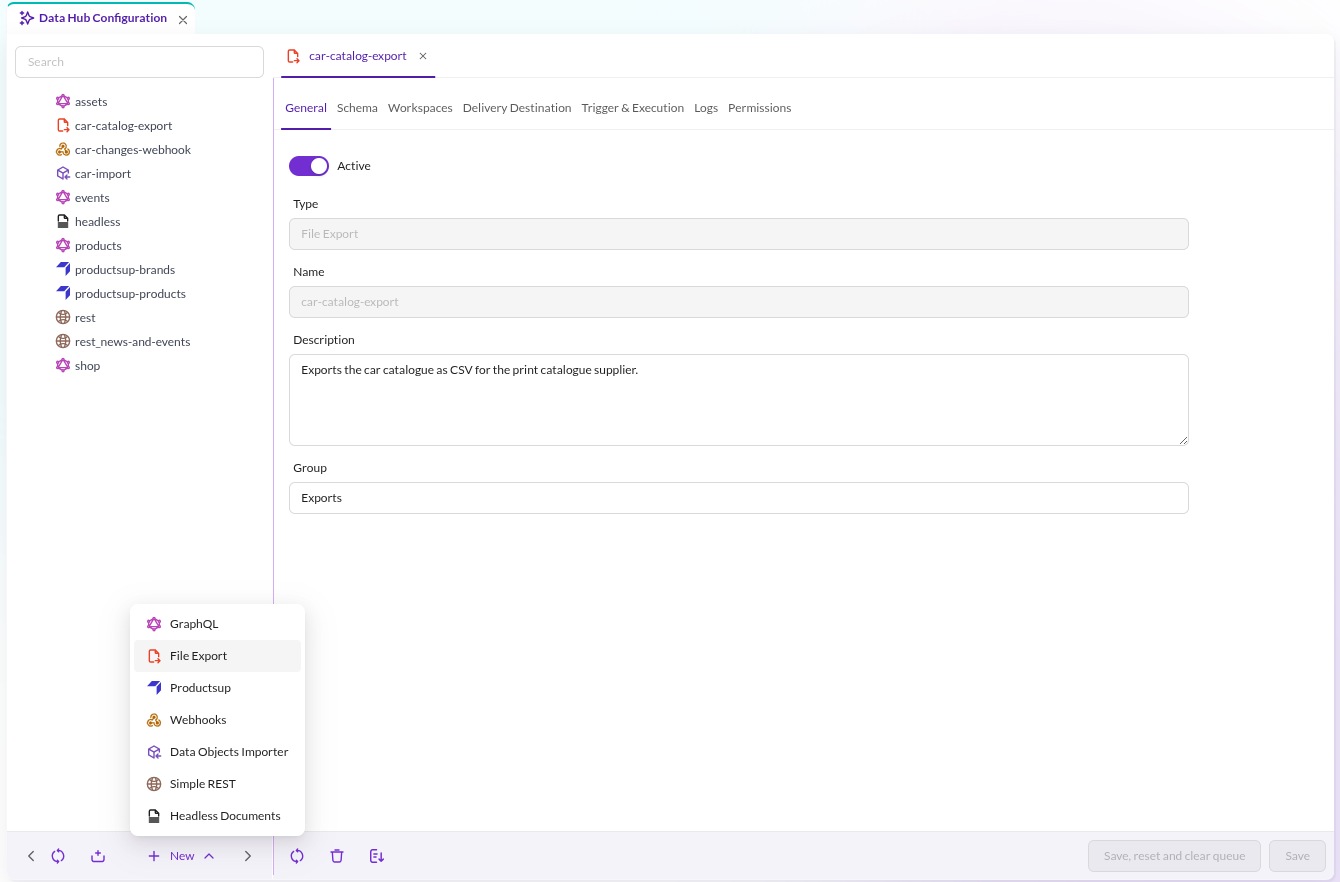

Active: enable or disable the configuration.TypeandName: set when the configuration is created and shown read-only here.Description: free text describing the configuration.Group: groups configurations in the Datahub tree on the left.
Schema
Pick the Data Object Class to export, then open Configure Columns to choose which fields are exported.
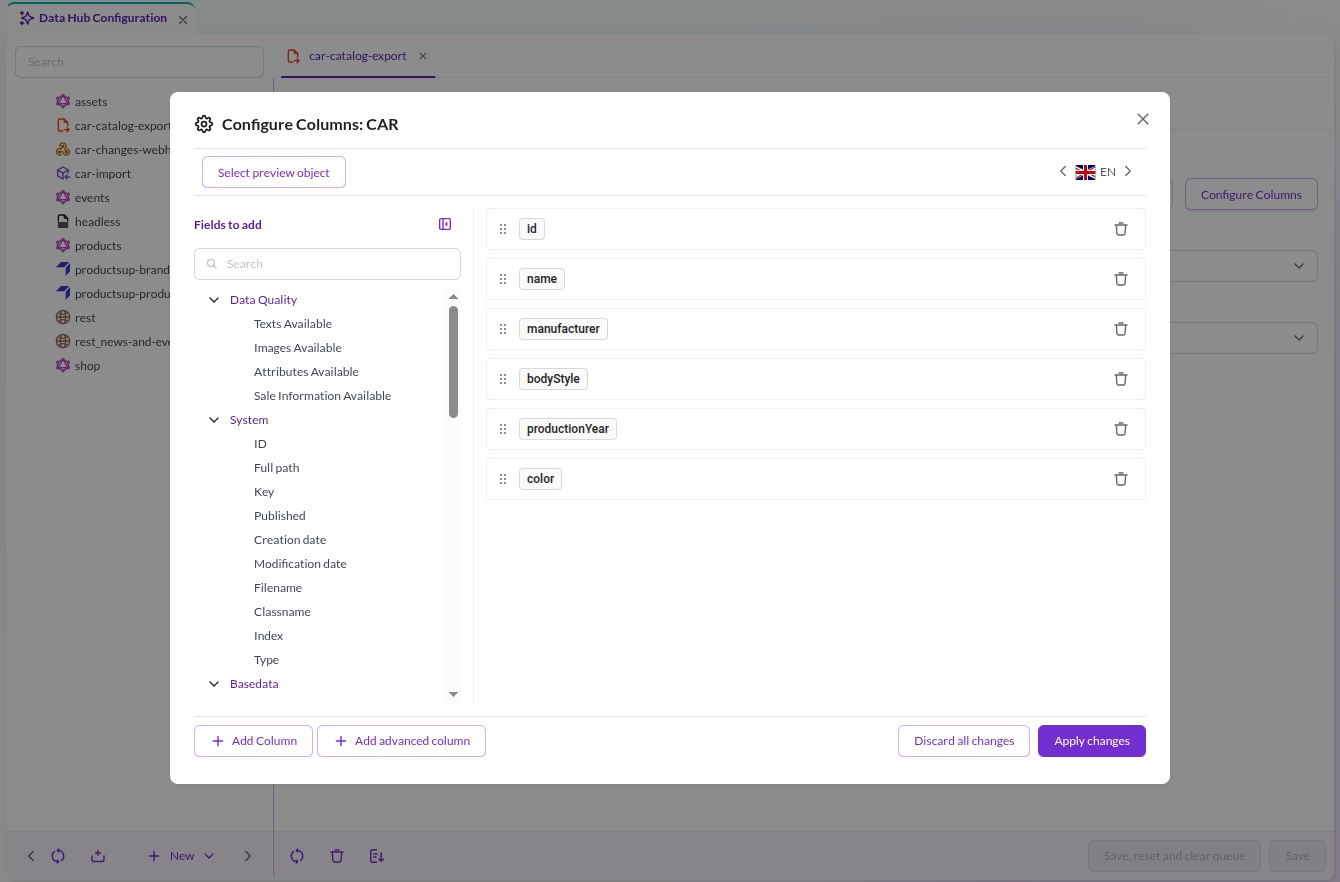

- Add fields from the Fields to add tree, the same field selection used by the Pimcore Studio data object grid.
- Optionally define an Image Thumbnail or Video Thumbnail when exporting assets. Leave them at
-- none / original --to export the original asset path. - Column names must be unique, and must be valid for the target format when exporting to
JSONorXML. - To rename a field in the output, add an advanced column, set its Title to the name you want, and add the original field under its Source fields. Transformers can additionally reshape the value.
Whenever the exporter has to interpret previously exported data, it identifies rows by the id column, so the object
ID has to be exported under the column name id. This applies to the Update Current File
conflict strategy, the only strategy that merges new rows into the file generated previously
instead of rebuilding it. Overwrite deletes the previous file and Rename (append suffix) picks a new name before
the merge step runs, so under those strategies no existing rows are read back.
Workspaces
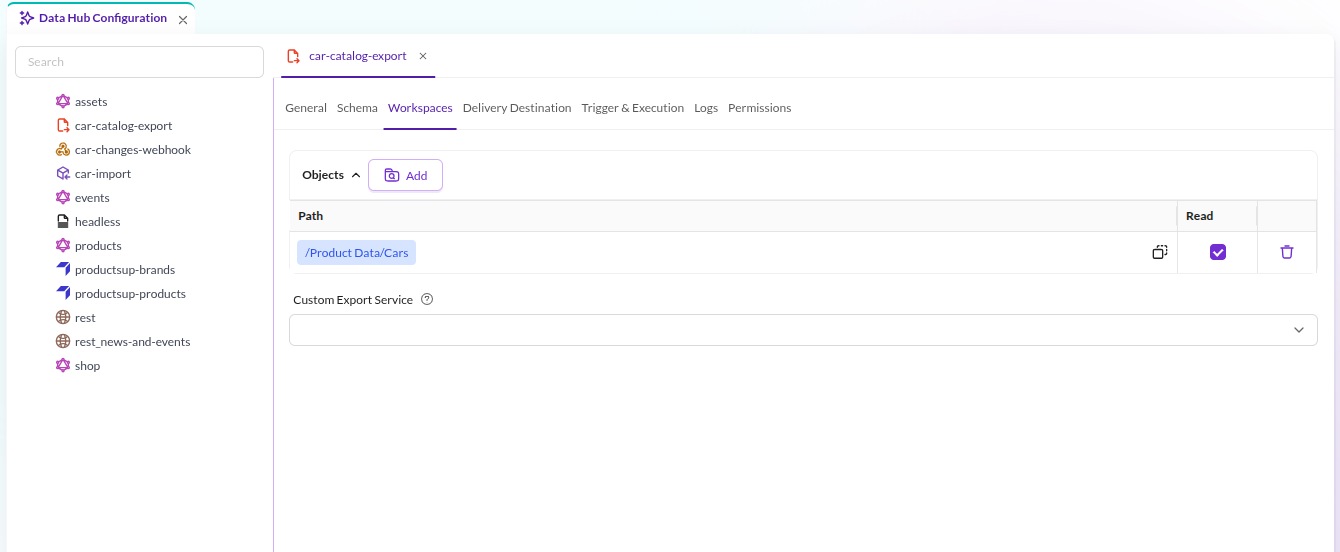

Objects- restrict the export to data object subtrees. Add a row and drag the folder or object into thePathcell. With no row, every object of the selected class is exported.Read- the per-row checkbox stored with the workspace entry. The exporter itself does not evaluate it; the export query uses the paths only.Custom Export Service- the service that runs the export. The default ispimcore.datahub.fileExport.exporter.file. Register your own as public, non-shared and tagged:
services:
    app.datahub.my-exporter:
        class: App\DataHubFileExport\Exporter\MyFile
        public: true
        shared: false
        tags:
            - { name: "pimcore.datahub.fileExport.exporter" }
See Customize and Extend for the implementation.
Paths are matched as a plain SQL LIKE '<path>%' prefix, without a folder boundary. An entry for /Product Data
therefore also matches /Product Data Archive. Multiple entries are combined with OR.
To filter further, listen to the IsValidExportItemEvent (see Events) or override
getQueryCondition() in a custom exporter service.
Delivery Destination
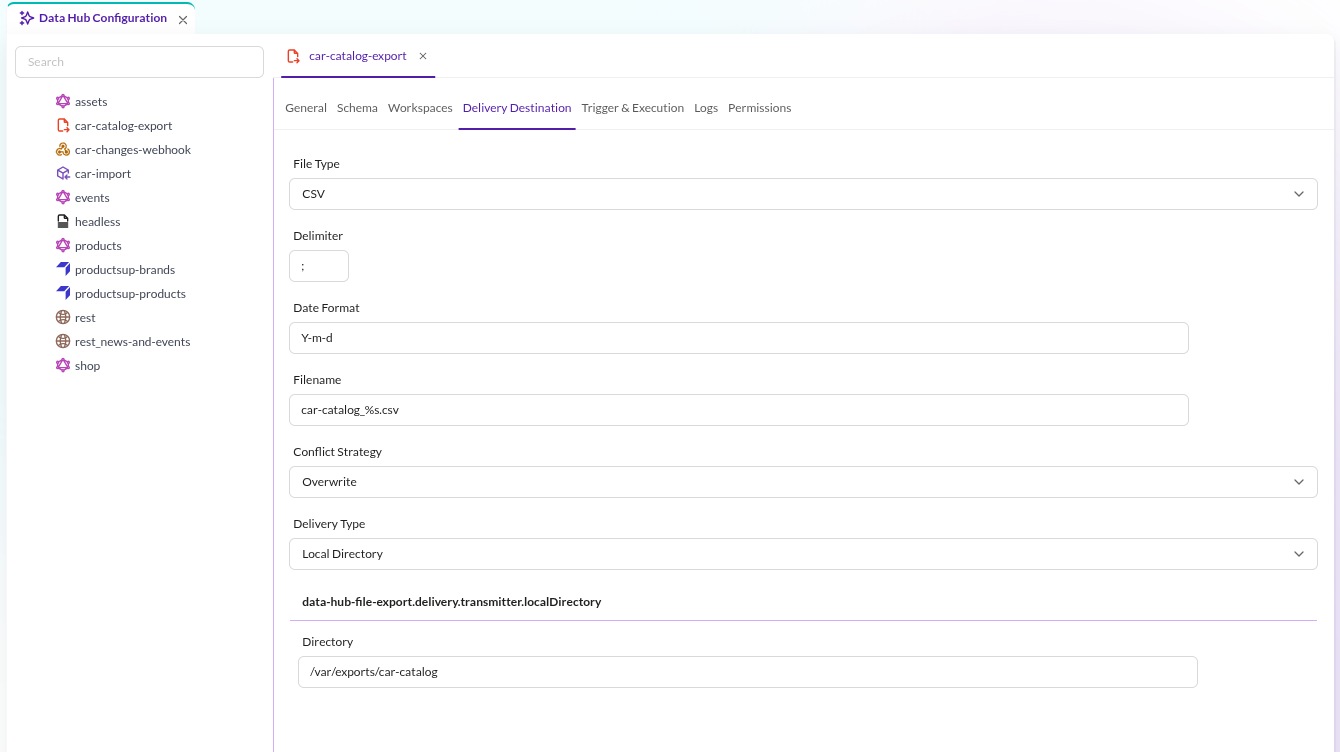

File Type: the export format to use. The dropdown lists every registered exporter type, soCSV,XML,JSONand any custom type you add.CSVreveals an extra single-characterDelimiterfield.Date Format: the Carbon date format used to render the date that fills the%splaceholder ofFilename, for exampleY-m-d.Filename: the name of the target file. Use%sas placeholder to insert the date configured inDate Format.Conflict Strategy:Overwrite: writes a new file containing only the data of the current run. Take care when combining this with a save hook, since each save overwrites the previous file.Update Current File: adds all data to the same file. Existing data from the object is added or updated. This strategy requires theidfield in the schema.Rename (append suffix): if a file exists, a new one is created with a numeric suffix. The new file contains only new data.
Delivery Type: where the data is delivered. Each type reveals its own settings below the dropdown.-
Local Directory: saves the data to a local directory. -
Download: serves the file at/pimcore-datahub-fileexport/download/<configuration-name>, guarded by theAccess Token:curl -H "Authorization: Bearer <access-token>" \
https://your-host/pimcore-datahub-fileexport/download/car-catalog-exportA signed-in Pimcore user holding
plugin_datahub_configmay download without the token. -
SFTP: uploads the data to an SFTP server. -
HTTP: sends the data to an HTTP endpoint. -
E-Mail: sends the data to one or more email addresses. -
Asset: creates a Pimcore asset with the data in the specified folder.
-
Trigger & Execution
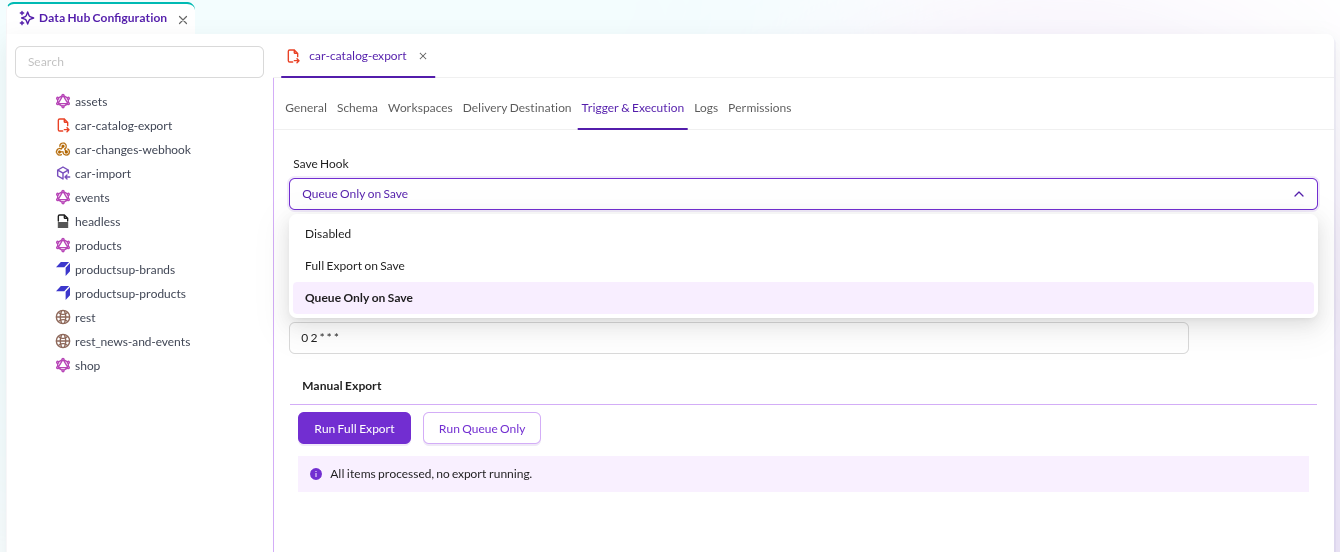

The Save Hook defines what happens when a data object is saved:
Disabled: saving does nothing. The export runs only through a cron definition or a manual run.Full Export on Save: saving the object writes its data directly to the target destination. Use this only for simple objects without inheritance, because of the save performance impact.Queue Only on Save: saving the object creates a queue item, and the export runs asynchronously later. This keeps saving fast, since the heavy work happens in the background.
With Full Export on Save the exporter writes the saved object. If the class allows inheritance, every object of that
class below the saved one is written as well.
Both save hooks skip auto-saves and version-only saves, and they only react to configurations that are active and bound to the same data object class.
Two cron fields, Cron (Full Export) and Cron (Queue Only), schedule recurring exports. The Manual Export section
runs an export immediately with Run Full Export or Run Queue Only, shows the current export status, and offers
Cancel Export while a run is in progress.
The toolbar button Save, reset and clear queue saves the configuration and empties its queue. Use it after changes that invalidate queued items, for example a new schema.
For details about the execution modes, cron setup and CLI command, see Export Setup.
Logs
The Logs tab lists the application log entries of this configuration, written under the component
FileExport :: <configuration-name>. Check it when an export produces no file or an unexpected one.
Permissions
The Permissions tab grants read, update and delete on this single configuration per user and role. Leaving it empty
falls back to the plugin_datahub_adapter_fileExport permission; filling it in overrides that permission entirely. See
Installation for the full resolution order.
Storage
By default the bundle writes the temporary file to var/tmp/data-hub/file-export/ and the output file to
var/data-hub/file-export/, both below the project root.
Customize the storage type and location with a Flysystem configuration in config.yaml:
flysystem:
    storages:
        pimcore.dataHubFileExport.storage:
            adapter: 'local'
            visibility: private
            options:
                directory: '%kernel.project_dir%/var/data-hub/file-export/'

        pimcore.dataHubFileExport.temp.storage:
            adapter: 'local'
            visibility: private
            options:
                directory: '%kernel.project_dir%/var/tmp/data-hub/file-export/'
With more than one application server, point both storages at a shared directory.
Next Steps
- Export Setup: run the export manually, on a schedule, or from the CLI.
- Customize and Extend: add formats, transmitters or a custom exporter service.